

Inspecting a chat
Manage / AI / Inspect Chat (#/manage/ai/inspect-chat) opens one conversation by its UID and
shows everything behind it. It is the page for "why did the assistant answer that?", and it is
admin-only: the endpoint it reads is gated server-side, not just the page.
What it shows
| The transcript | The conversation as a read-only rendering, the way the user saw it. |
| The raw messages | The same turn as JSON, which is where the parts a rendering hides live. |
| Tool calls | Every call the assistant made, with its arguments, its result, how long it took, and the error it ended on if it failed. |
| Sub-agent runs | An agent tool call carries the run it started, including runs that delegated onwards, so you can follow the chain from the call to that run's own prompts, parts and errors. |
A tool call that failed is coloured on its chip in the ordinary chat too: orange when the tool ran and threw, red when the tool's own code does not compile.
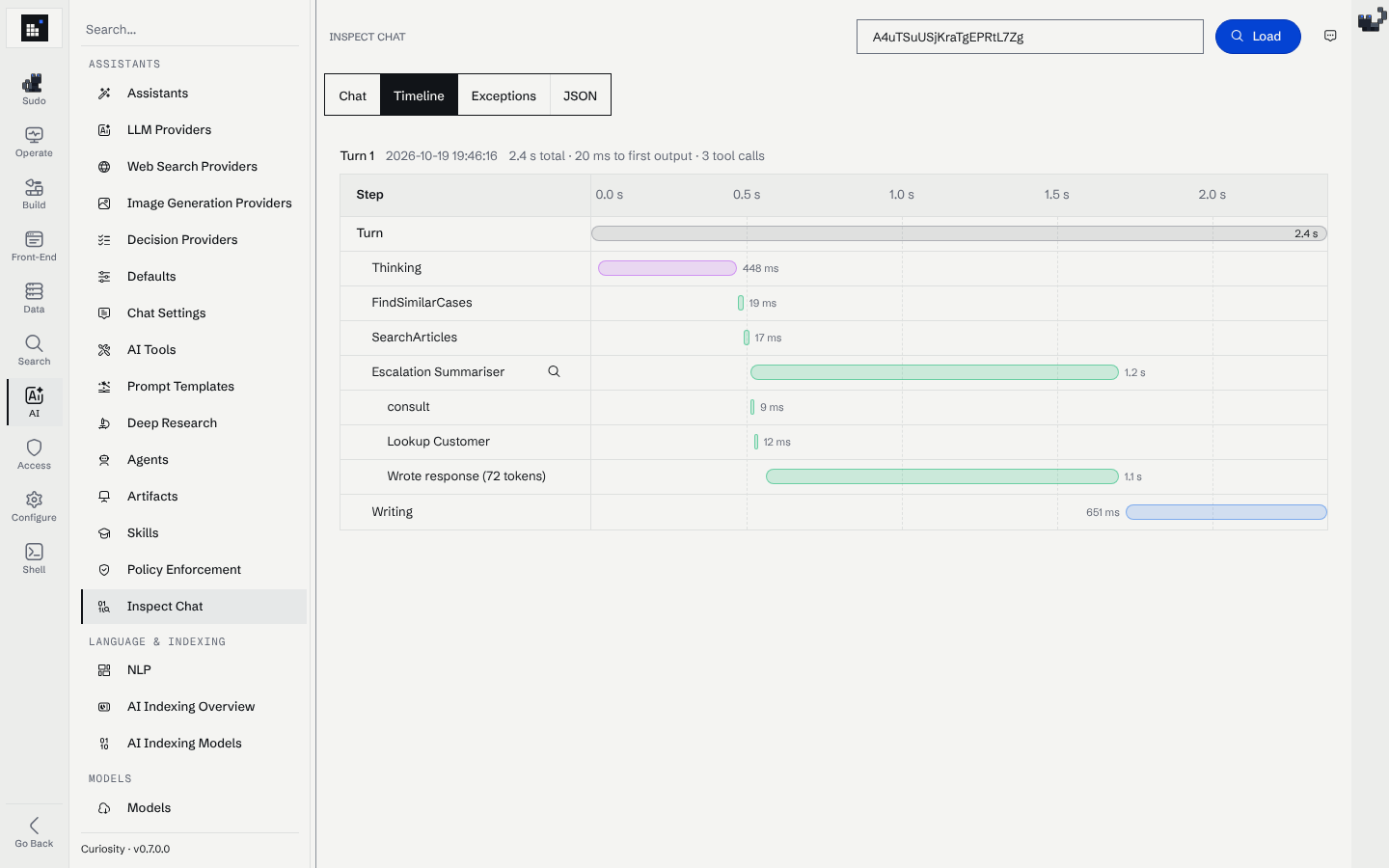
The Timeline tab shows one turn as a chart, here a turn that searched, read an article and delegated to the Escalation Summariser agent. Each tool call is a bar with its duration, and the agent's own calls are nested under it.
Finding the UID
- From Active Chats, which links into this page for a turn that is in flight.
- From a user's report: the chat UID is in the URL of the conversation they were in.
- From Policy Enforcement, where a flagged or rejected message names the chat it came from.
What to look for
A wrong answer with correct tool results is a prompt problem: read the assistant's system prompt and the skills it carried.
A wrong answer with no tool call usually means the tool was not reachable: check its access mode under AI Tool Access, and whether it compiles at all on the Build page's failing-compilation filter.
A tool call with an unexpected argument is a description problem. The model chose that argument from the tool's own description and parameter names, so those are what to change.
A sub-agent that returned nothing is worth opening on its own run: the failure is usually inside it rather than in the call that started it.
What it does not show
The user's data beyond what the conversation itself contains, and nothing from a chat the endpoint does not return. Chat retention is configured under Manage / AI / Chat Settings, so a chat older than the retention window is gone rather than hidden.
Read next
- Observability — Active Chats and Agent Metrics.
- Chat policies — what gets flagged, and where.
- Agents — the runs a tool call links to.