

Sudo
Sudo is the admin-facing AI assistant of Curiosity Studio: an in-product chat that reads, designs, changes and operates every configurable surface of your workspace. He works the way a developer works, by editing files and running commands, and nothing he writes reaches the workspace until you approve the diff.
He is not the assistant your end users talk to. That one searches the workspace and reads what it is handed. Sudo changes the workspace itself: endpoints, AI tools, agents, skills, prompt templates, scheduled tasks, indexes, schema, NLP, search settings, chat policies. The two wear different coats on purpose, so which one is in front of you is legible at a glance.
Despite the name, Sudo never assumes elevated privileges
He reads the graph as the administrator who is talking to him, under their permissions, and he asks first. Nothing is written until you approve a specific diff.
How he works, in one paragraph
Your workspace configuration already round-trips through the definitions export as plain files:
that is what the export zip, the WebDAV mount and the git tracking are. So the configuration is
handed to Sudo as a filesystem, and he changes it the way anyone changes files. He reads them
with cat and grep, edits them with sed or a heredoc, compiles them with build, and hands
the result to you with commit. There is one tool, one sandbox, and one way into the workspace.
Where he appears
| Surface | What he is doing there |
|---|---|
| The admin chat pane | The conversation itself. Collapsed by default, opened from a floating toggle carrying his avatar. Both only exist inside the admin interface, for system administrators. |
| The full-screen assistant | The same conversation with room to read a diff, reached from the pane's expand button. The open session is kept in the address, so a refresh, a bookmark or a link shared with another administrator comes back to that session rather than to whichever one the page was opened on. |
| The pending-changes panel | The commit he has staged, if any, and the button that opens it for review. |
| The terminal window | The same shell he is working in, opened from the chat toolbar, for when you would rather look yourself. |
| Your own terminal | curio opens the same sessions and sandbox from your machine, as a two-panel file manager or as commands a coding agent can run. A session started in curio is listed here, and the other way round. |
| The composer, the transcript, the empty state | His avatar, idling and fidgeting between turns, and sitting at a laptop for as long as a reply is being generated. |
| The built-in editors | He perches on the modal of a built-in AI tool, agent, skill or prompt template, which is how you tell a built-in from something your workspace authored. |
Docked beside an admin page, Sudo's pane shows the session, the commands behind a turn and the commit waiting for review:
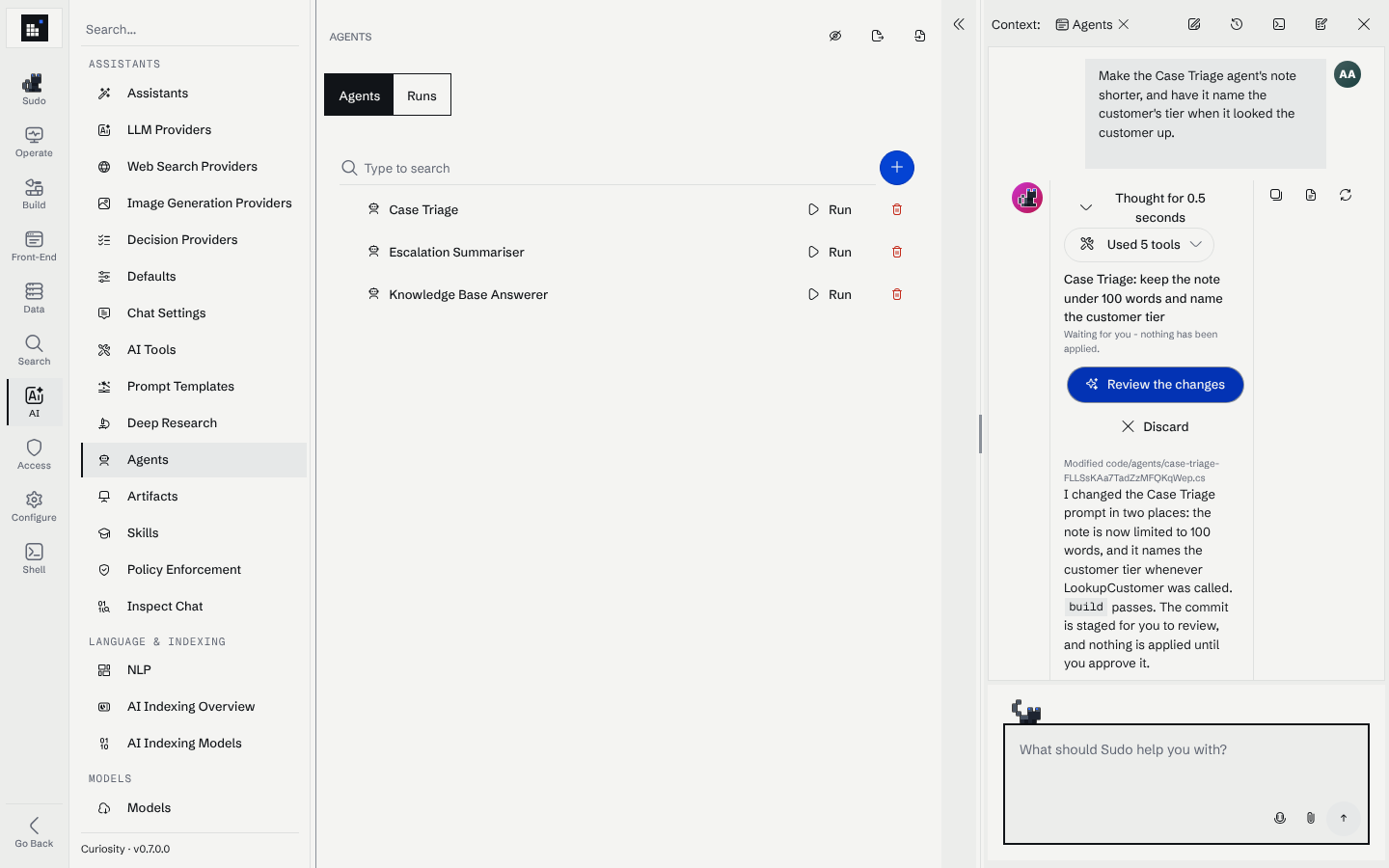
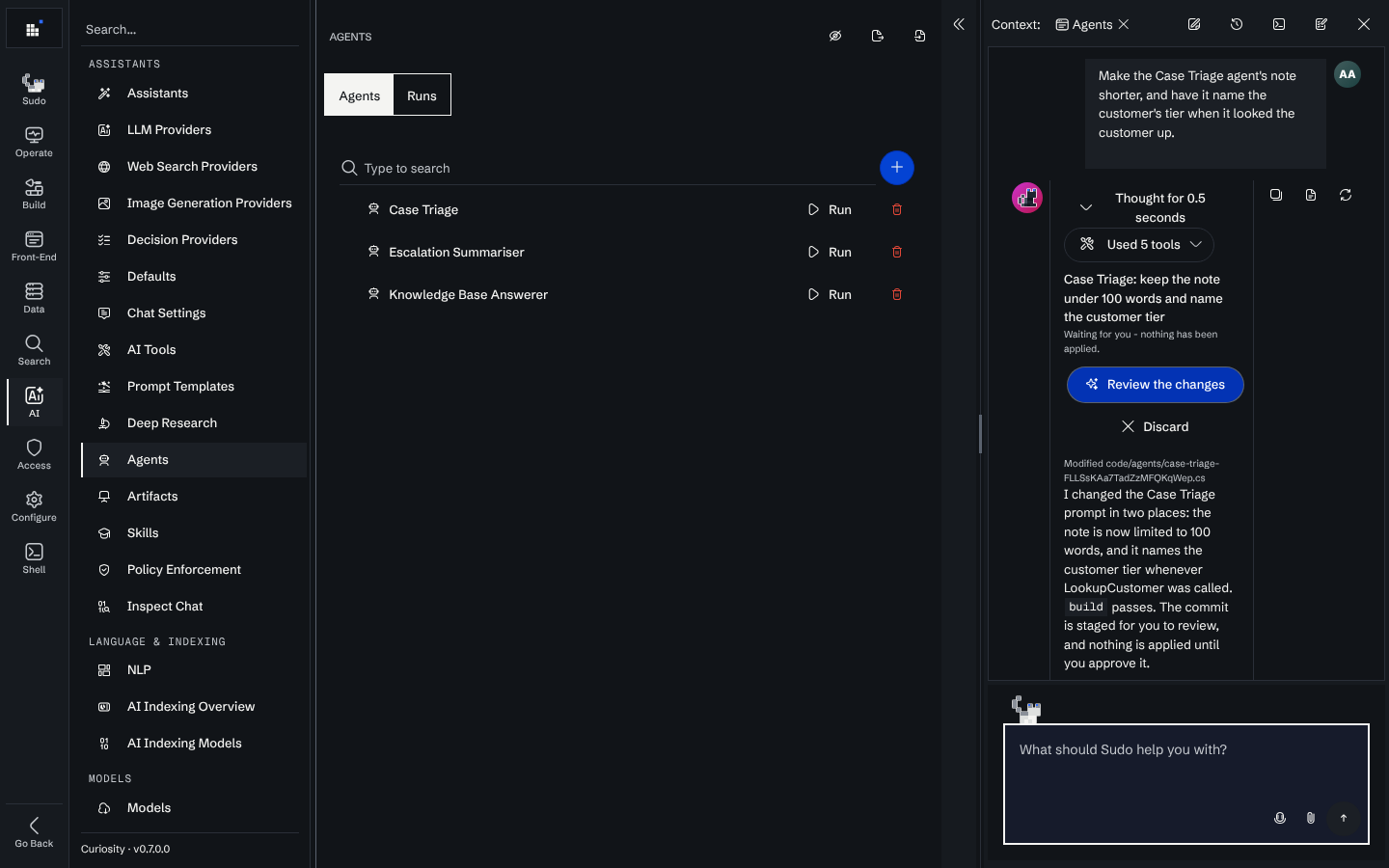
The pane is aware of what you are looking at. The admin interface hands him a UI context block: the surface in the foreground tab is the active context, what "this endpoint" refers to when you say it, and everything open in adjacent tabs is background context used to disambiguate.
Handing him a file
The composer's attach button uploads a file into the conversation, and he reads it at
/home/uploads/<name> — text and code as the bytes you uploaded, a PDF, spreadsheet or Word file as
the text the extractor gets out of it on demand, and a .zip as a directory he can walk rather than
an archive somebody has to unpack first. That is what makes "here is the CSV, design me a schema and
a connector for it" a request he can start from.
The files are ordinary uploads of yours, they are read-only to him, and they are deleted with the conversation. See the workspace filesystem.
Nothing lands without your approval
There is one way a change reaches the workspace, and it goes through you. Sudo reads the configuration, drafts in his own copy of it, and hands you a commit; the workspace is unchanged until you approve that specific diff. There is no mode in which he applies something himself, and no session setting to get wrong — this is how every session works.
The chat used to open with a read-only / allow-changes question; it is gone. The approval step already guarantees what the question was protecting against, and the only thing an answer to it could do was refuse a commit the administrator meant to make.
What your account may do still applies, and is the narrower of the two. A read-only
administrator — and any administrator while
administrator write protection is
on — can read the workspace and draft in it, but commit and run refuse: there is nothing for an
approval to be an approval of, since the approving administrator would not be allowed to apply it
either. Everything that reads still works, and the drafts are kept.
How he behaves
His voice and boundaries are a skill in your workspace (sudo-persona), so they are visible and
editable rather than hard-wired:
- Verify before acting. Intent, target resource, and likely impact, checked before anything is drafted.
- Proceed on the small and reversible. Clearly requested, low-risk, reversible work goes ahead.
- Ask first on the rest. Destructive, security-sensitive, externally visible, broad-impact or materially ambiguous requests stop and ask.
- Smallest change that works. He edits the lines that need editing rather than retyping a file.
- No invented state, no unconfirmed success. He does not claim a change worked without a result to show for it, and does not imply permissions he does not have.
- Report what happened. What changed, where, whether it worked, what is left.
Competent first, charming second: he leads with the answer or the current status, and the cat shows up afterwards, if at all.
What he will not do
- Write without approval. There is no path from a draft to your workspace that does not pass through a diff you approved, and the approval is bound to the exact commit you were shown.
- Read your data.
graphandqueryare read-only, run under the chatting admin's permissions and skip node types that are never returned to clients. Configuration, runtime state and the files you staged or attached are the whole of what he sees. - Reach the network. The sandbox has no route out: no
curl, nowget, no HTTP from a command. - Manage users, teams or access-group membership. He can read access groups and reference one from a definition; membership is yours, under Manage / Access.
- Read a secret value. He can declare a secret and write code that reads it. He can never see one.
- Install packages, take backups, restart the workspace, or touch licensing.
- Replace the admin pages. Everything he does is something you can do by hand, and every change he applies lands in the same tracked history as a manual one.
Read next
The sandbox
The in-process bash and Python he runs, the limits they run under, and what "sandboxed" buys you.
The workspace filesystem
Every mount, and how the folders under /workspace map onto the surfaces you configure by hand.