

Microsoft 365 tenant consent
Custom SharePoint, OneDrive and Outlook connectors configured through the SSO flow sign users in with Curiosity's own Microsoft apps, listed in step 3 (see the authentication table on Microsoft SharePoint). If your tenant requires an administrator to approve apps before users can connect them, pre-authorize those apps in the Azure portal. This page walks through it.
A connector that carries an app registration of your own (tenant ID, client ID and secret) does not use these apps; grant consent on that registration instead: see Microsoft Entra ID (Azure AD) SSO.
The steps:
- Check that users can ask to connect apps on your tenant.
- Have a user without admin rights connect each integration, to find which apps need approval.
- Grant admin consent for those apps.
- Connect again with the same user to confirm.
Microsoft's own guide: Grant tenant-wide admin consent to an application.
1. Check that users can request apps
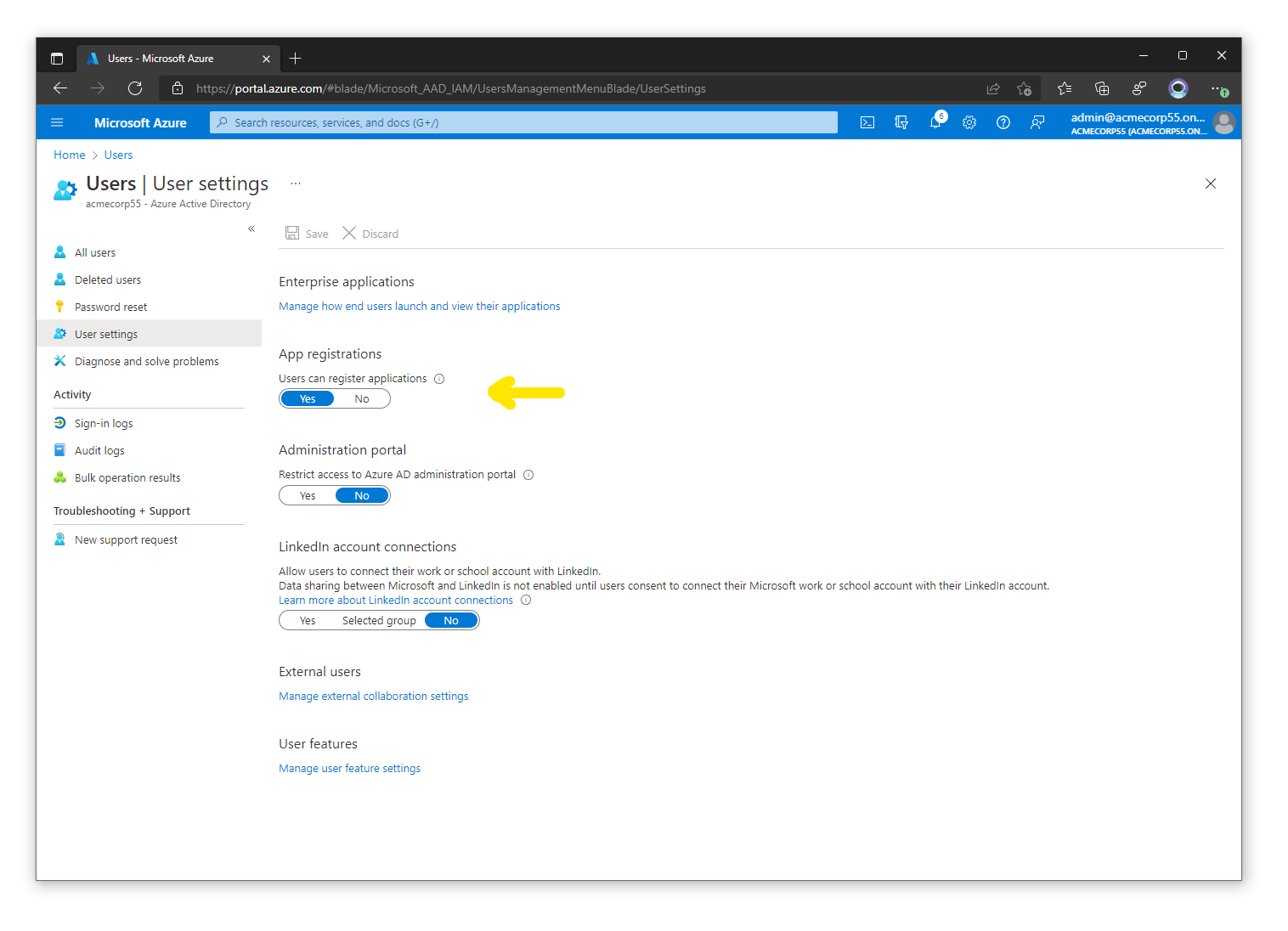
In the Azure portal, open Users → User settings and set App registrations to Yes. Save.
Open Enterprise applications → Consent and permissions. The setting decides what step 3 involves:
Setting What to do Allow user consent for apps Nothing more for users to connect. Allow user consent for apps from verified publishers, for selected permissions Add the permissions each Curiosity app needs to Low impact permissions, or do step 3 for every Curiosity app. Do not allow user consent Do step 3 for every Curiosity app. 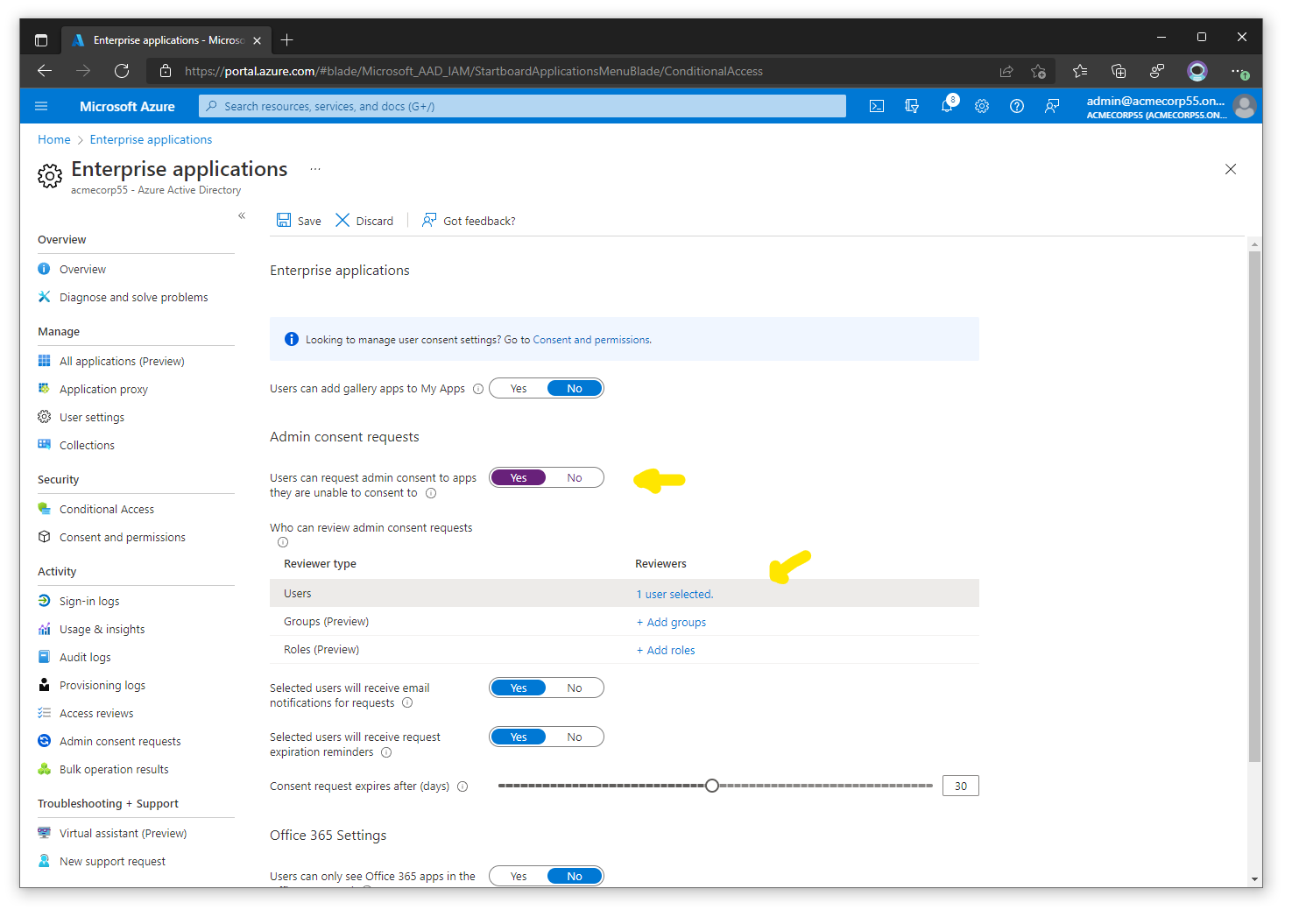
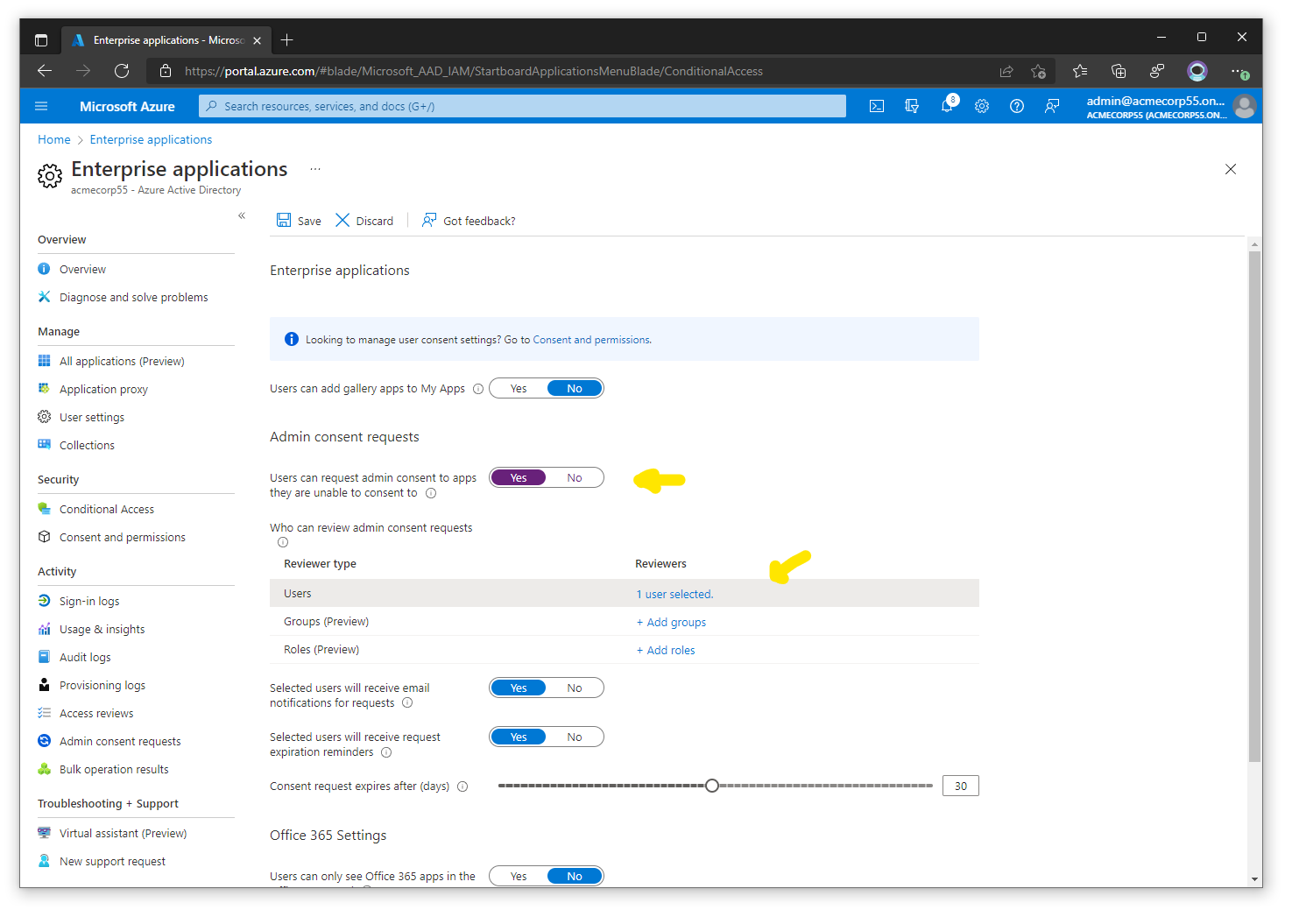
Open Enterprise applications → User settings and set Admin consent requests to Yes. If you change it, also add a user, group or role to review requests. Save.
2. Find which apps need approval
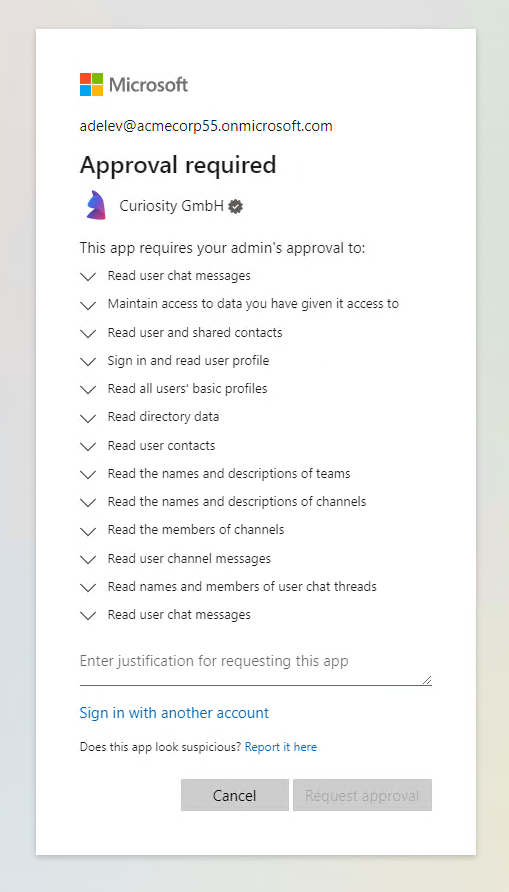
Sign in to Curiosity Studio with an account in your tenant that has no administrator rights. Open Connect apps (#/spaces/connect-apps) and connect each Microsoft integration you plan to use.
This adds the Curiosity apps to your tenant's Enterprise applications list. Errors at this step are expected and can be ignored.
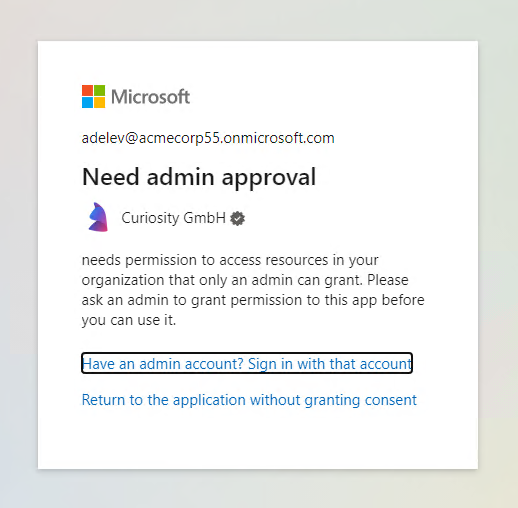
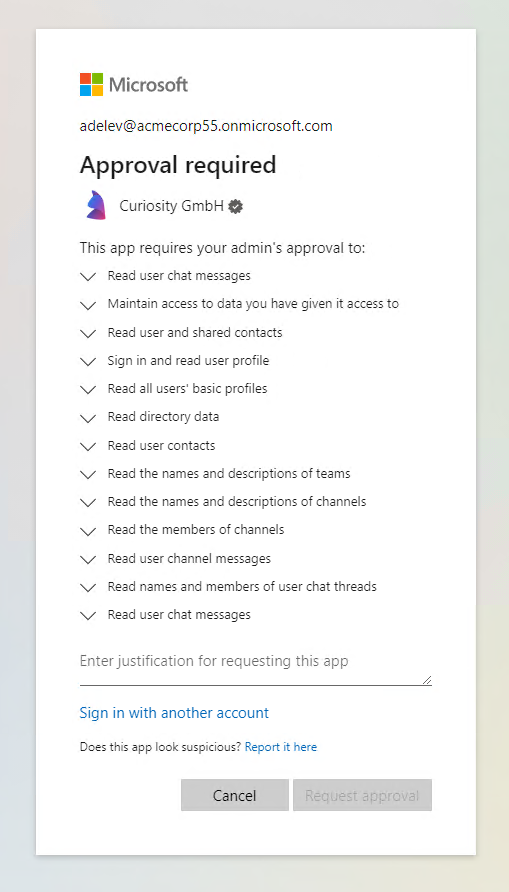
Note which apps show Need admin approval or Approval required. Only those need step 3.
3. Grant admin consent
Sign in to the Azure portal as a tenant administrator, or with an account that can grant consent. Open Enterprise applications and search for Curiosity. If the apps are not listed, repeat step 2.
The Curiosity apps and their application IDs:
| App | Application ID |
|---|---|
| Curiosity for Teams | 77217ab8-1b40-49a7-9608-d1a6b78ec8a9 |
| Curiosity for OneDrive | c9c36707-2796-478f-a3b3-f5962a251509 |
| Curiosity for SharePoint | 12715a9d-ca11-4492-9d50-101b52b501d4 |
| Curiosity for Outlook Calendar | 6aea9756-715a-48ab-a12b-e869bf54c48b |
| Curiosity for Outlook | ea89a0a7-89ac-43a6-a255-de2fd5ed3ad7 |
Check the IDs
Grant consent only to apps whose application ID matches the table. If an ID differs, stop and write to hello@curiosity.ai.
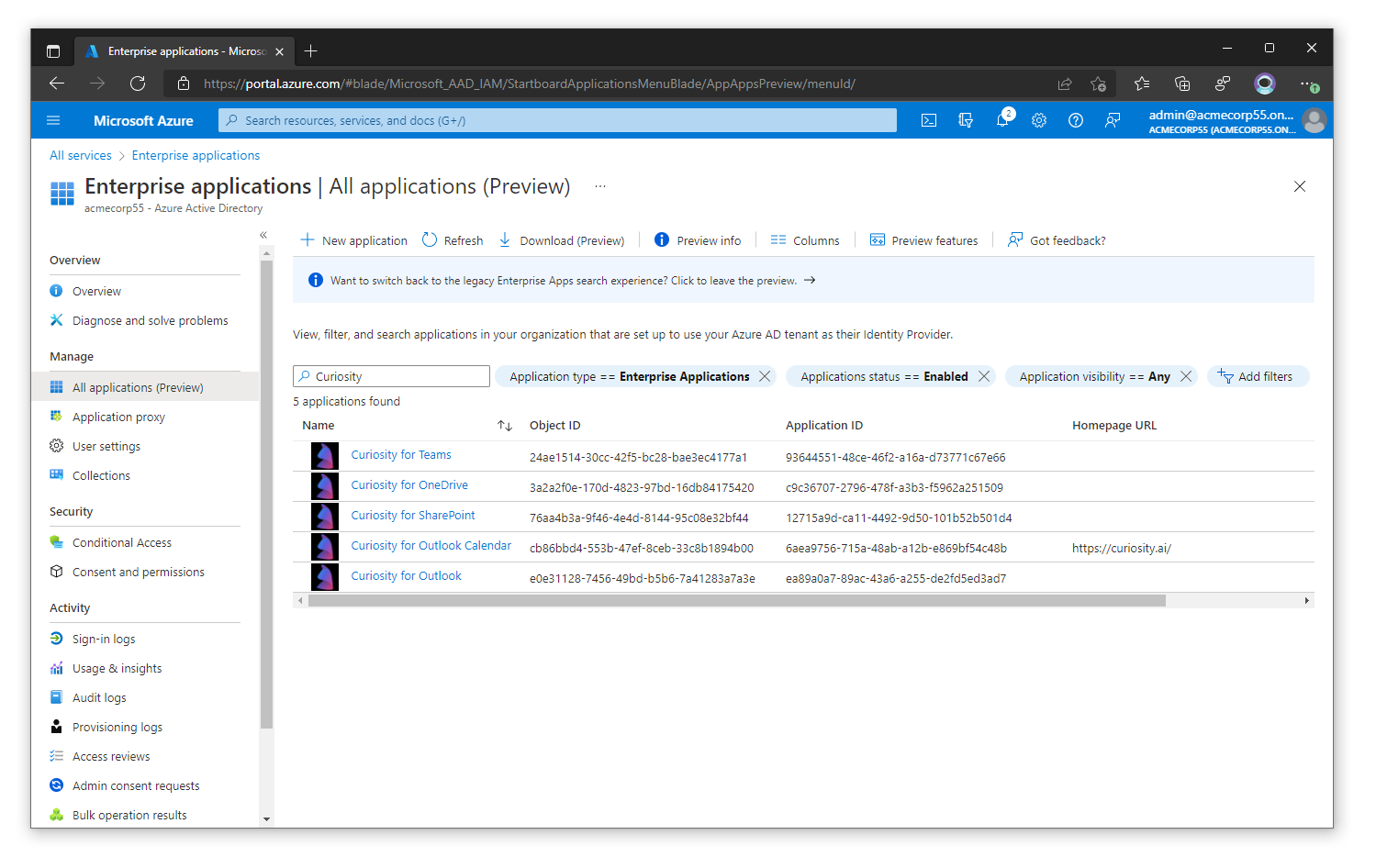
For each app that needed approval in step 2:
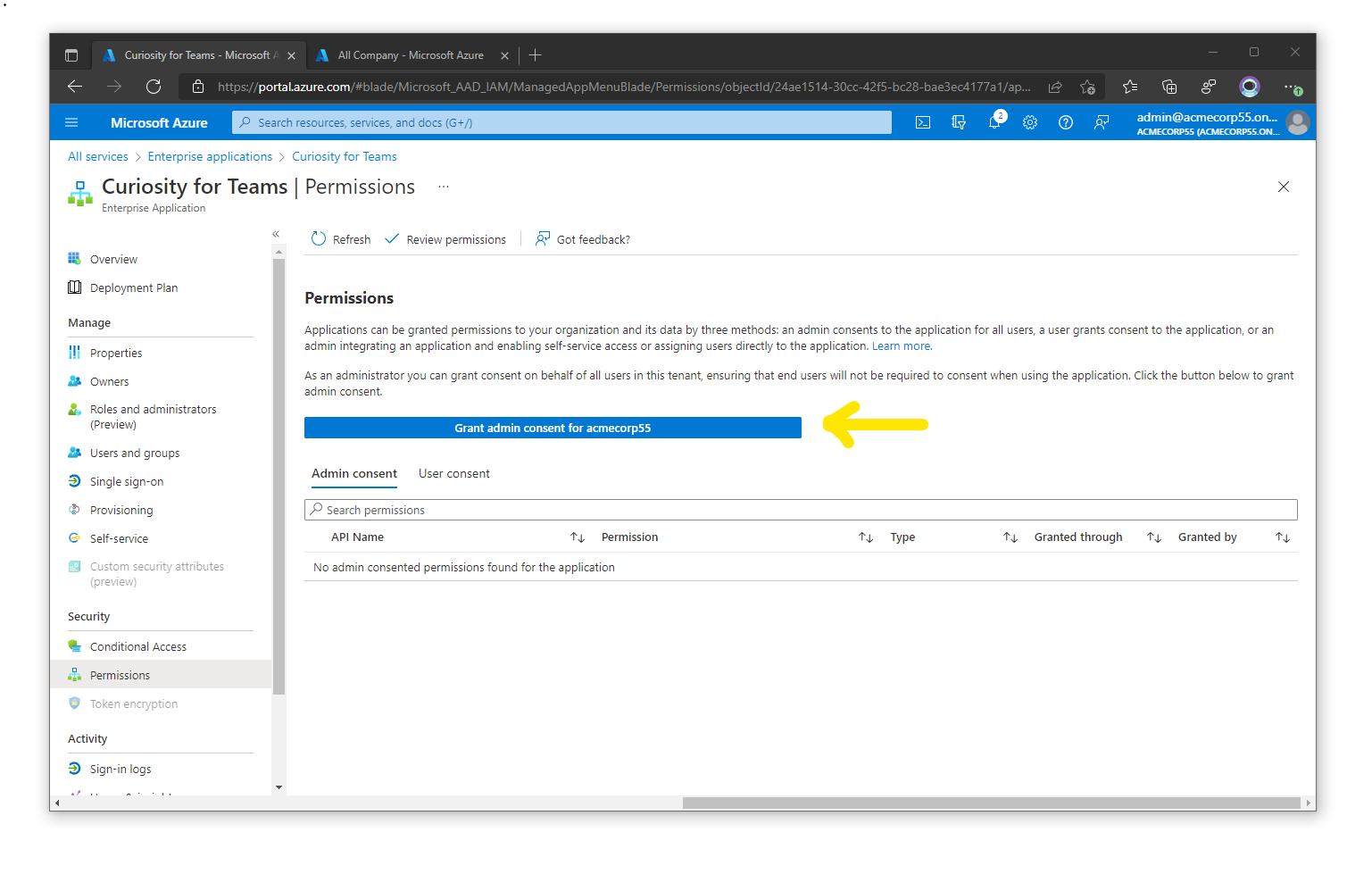
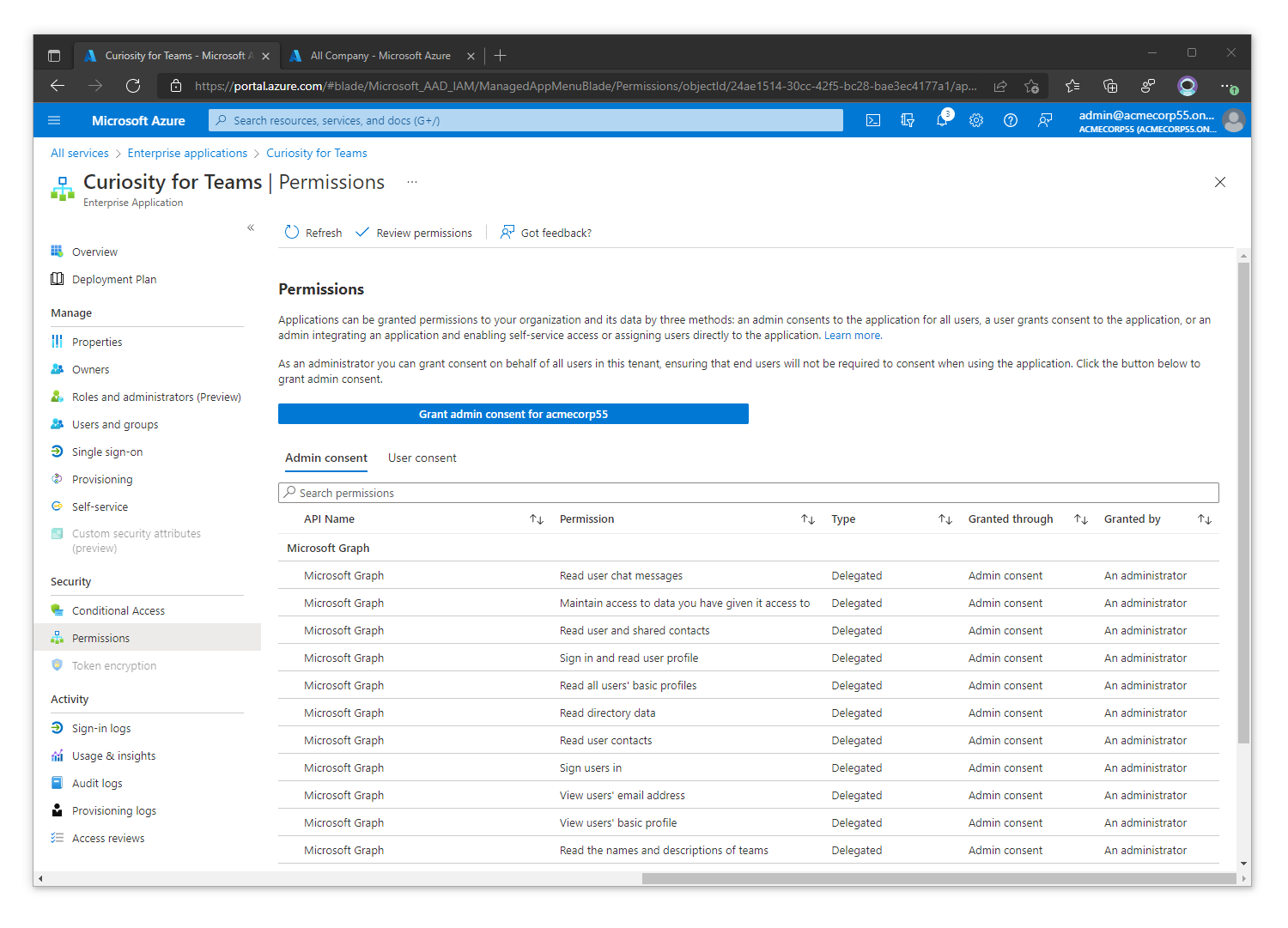
Open the app, then Security → Permissions.
Click Grant admin consent for your tenant.
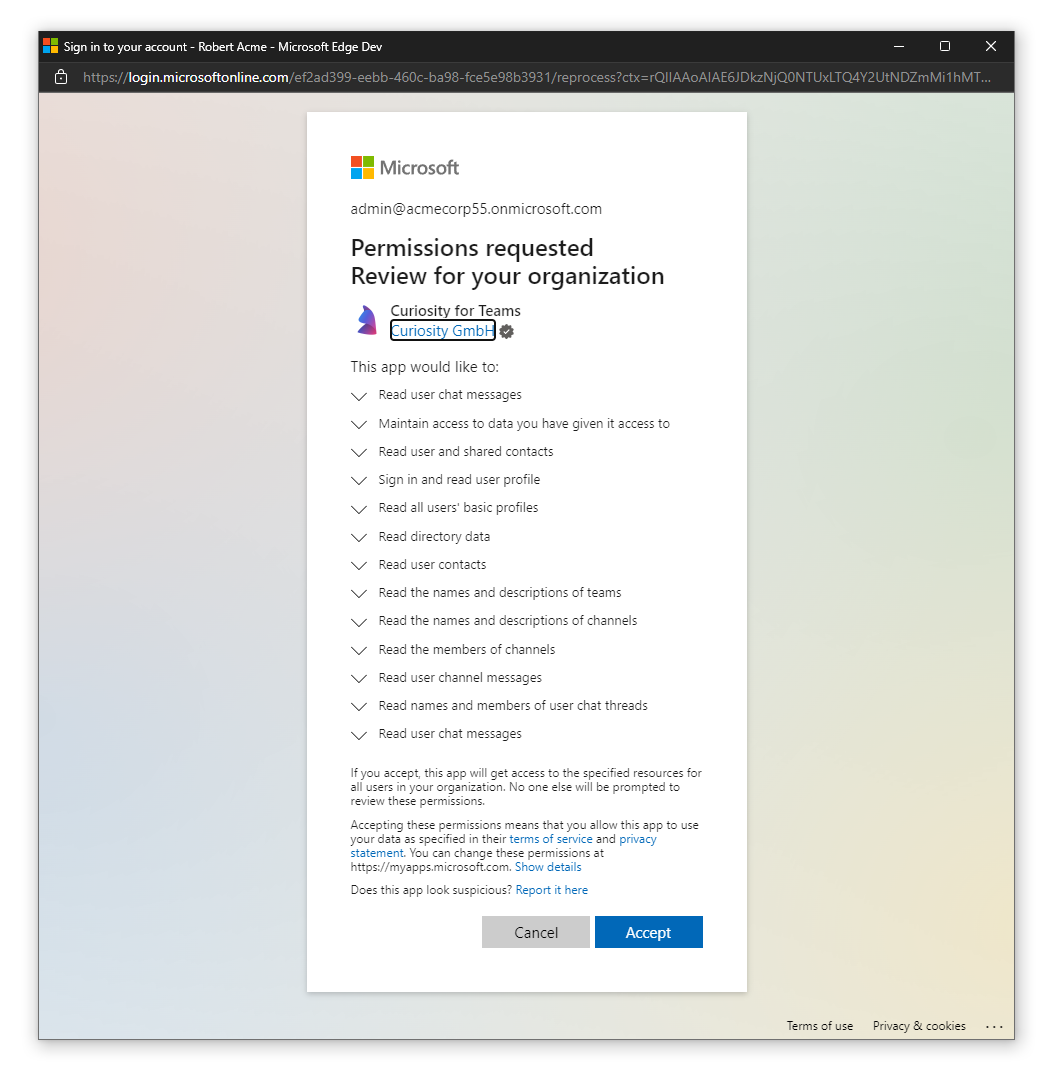
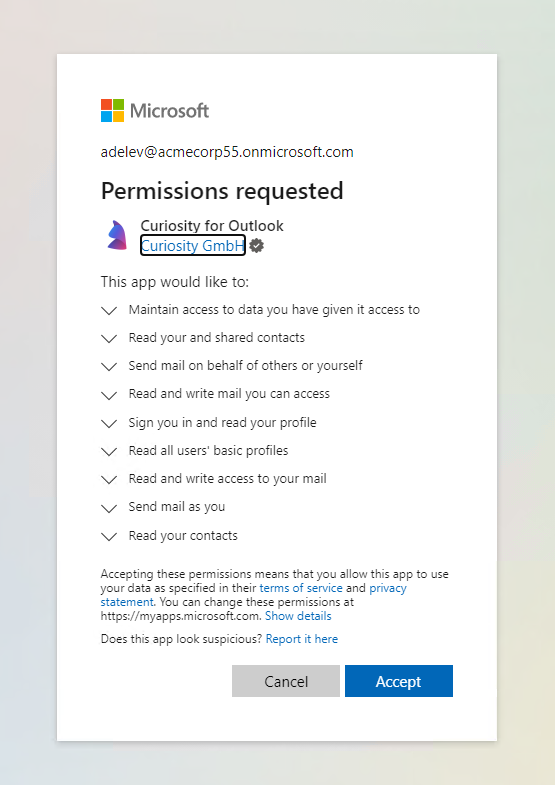
Review the permissions in the popup and click Accept.
Back on Permissions, each permission should show as granted through Admin consent by An administrator. The list can take a moment to update; refresh the page if it is empty.
4. Confirm with a user account
With the same non-administrator account, connect the Microsoft integrations again from Connect apps. Each consent prompt should now offer Accept, with no admin approval request.
If an app still shows Approval required, the permissions may not have propagated yet. Wait a few hours and try again; if it persists, contact your Azure support.
Related pages
- Microsoft SharePoint: the connector, its authentication options and its permissions.
- Microsoft OneDrive
- Microsoft Teams
- Microsoft Entra ID (Azure AD) SSO: your own app registration for a self-hosted workspace.