

Okta
Curiosity supports Single Sign-On using Okta.
Prerequisites
You will need the following information from your Okta Developer Console:
- Okta Domain
- Authorization Server Name (e.g., "default")
- Client ID
- Client Secret
Configuration Steps
1. Create an Okta Application
- Log in to your Okta Developer Console.
- Navigate to Applications > Applications and click Create App Integration.
- Select OIDC - OpenID Connect and Web Application, then click Next.
- Enter an application name (e.g., "Curiosity SSO").
- Set the Login redirect URI:
{domain}/api/oktasso/completed-login-attempt - Click Save.
- Note down the Client ID and Client Secret from the application summary.
2. Identify Domain and Authorization Server
- Go to Security > API.
- Note the Issuer URI for your authorization server (usually "default").
- The Okta Domain is the Issuer URI without the
/oauth2/defaultsuffix. - The Authorization Server Name is typically
default.
3. Enter Details in Curiosity
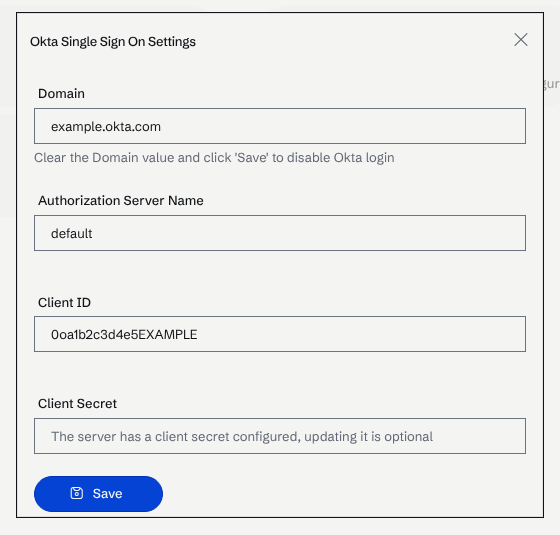
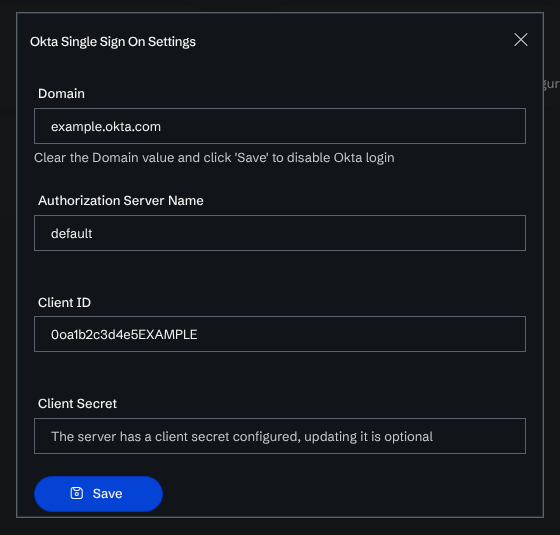
- In Curiosity, navigate to Manage > Settings > Accounts > Single Sign-On.
- Select Okta.
- Enter the Domain, Authorization Server Name, Client ID, and Client Secret.
- Click Save.
Troubleshooting
- Invalid Domain or Server Name: Errors will appear immediately upon redirection to Okta.
- Invalid Client Secret: Login succeeds on Okta, but fails upon returning to Curiosity.
- Redirect URI Mismatch: Ensure the URI in Okta matches your workspace URL exactly.