

Profiling
When a workspace is slow, leaking memory, or pegging a CPU core, the Admin → Profiling view captures the two diagnostics that .NET tooling expects: a memory dump of the live graph and a CPU sampling profile of the worker process. Both run against the workspace process you're connected to, stream progress back to the browser, and offer the resulting file for download.
This page covers what each capture contains, when to use which, and how to open the result in the standard Microsoft tooling for deeper analysis.
Where it lives
Open the workspace as a system administrator and navigate to:
Admin → Profiling
The page opens on the Memory Dump tab; the other tabs are CPU Profile, Trace, Allocations, GC Pauses and Results. The two captures below are the memory dump and the CPU profile. Both are gated by the [AuthorizeSystemAdmin] policy, so only administrators can trigger a capture or download an artefact.
Each run emits a short-lived download token (good for 30 minutes) and is logged on the server side. Files are deleted from the workspace host after the TTL expires whether or not they were downloaded.
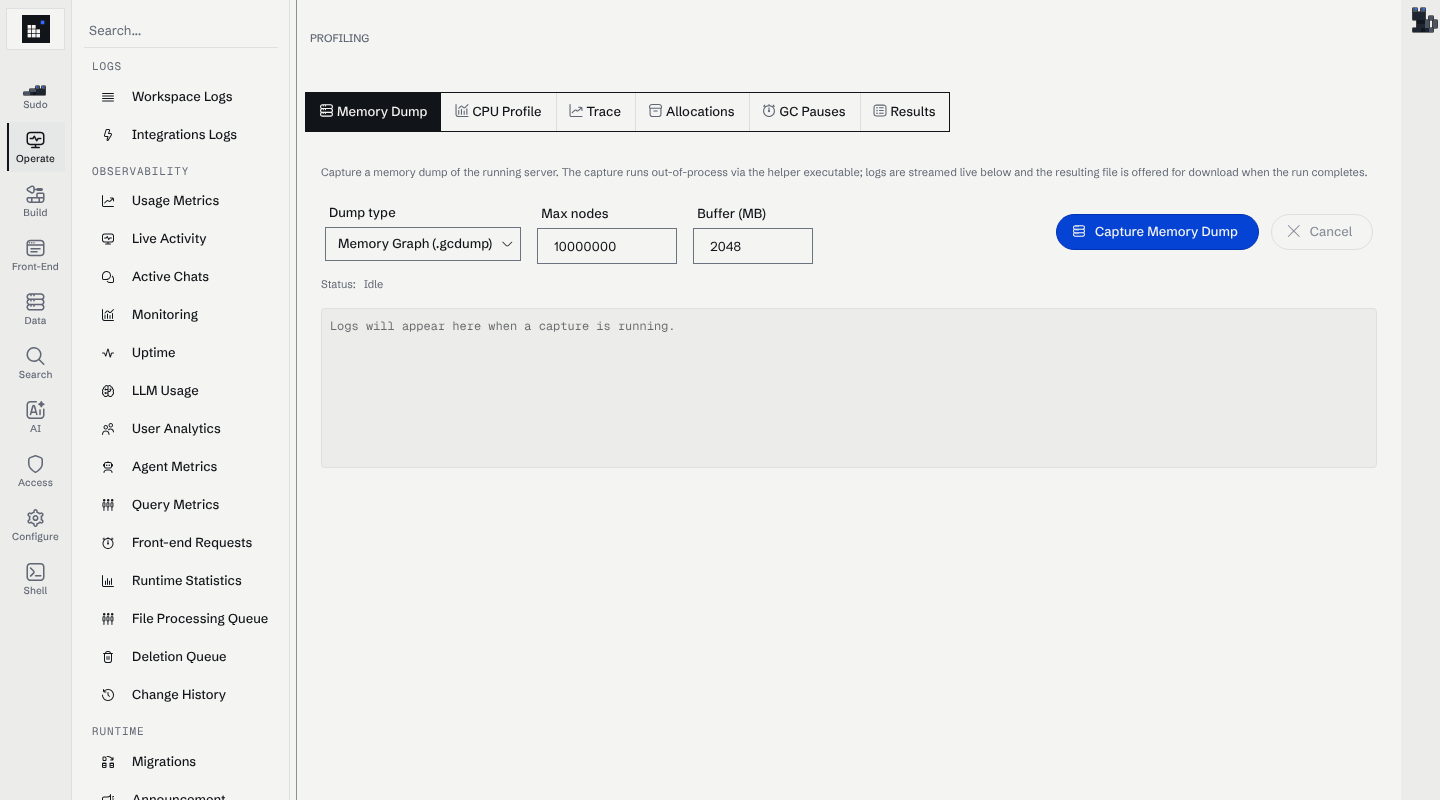
Memory dump
A memory dump answers questions about what's on the managed heap: which types are taking memory, which objects are keeping them alive, and which references stop the GC from reclaiming them. Use it when memory grows over time, when a OutOfMemoryException shows up in logs, or when you need to confirm a leak before fixing it.
The view offers two collection types:
| Type | Extension | What it contains | When to pick it |
|---|---|---|---|
| MemoryGraph (default) | .gcdump |
Type-by-type counts and the full reference graph between managed objects. No field values, no strings. | Almost always. Small (~tens of MB), safe to share, opens in Visual Studio and PerfView. |
| Mini dump | .dmp |
A full process minidump — managed heap plus thread stacks, native state, and the contents of every managed object. | When you also need to inspect field values, look at threads, or attach a debugger. Files are large and contain raw memory; treat as sensitive. |
Two knobs are exposed before the run:
- Max nodes count (default
10_000_000) — caps the number of managed objects walked into the.gcdump. Increase only if the dump completes with a "truncated" warning; the default handles a workspace with tens of millions of objects. - Circular buffer size in MB (default
2048) — size of the EventPipe ring buffer used during capture. Bump it if the workspace logsEventPipeEventDispatcher dropped eventsduring the dump.
Opening a .gcdump
| Tool | Notes |
|---|---|
| Visual Studio | File → Open → File… and select the .gcdump. The Memory Usage analyser shows type counts and the "paths to root" view. Visual Studio: analyze .NET memory usage without debugging |
| PerfView | File → Open → pick the file. The "Heap" view aggregates by type and lets you drill into retainers. PerfView download (GitHub releases) |
dotnet-gcdump |
CLI counterpart used to produce the same format outside the workspace UI. dotnet-gcdump report file.gcdump prints a top-N summary in the terminal. dotnet-gcdump CLI reference |
Opening a .dmp
| Tool | Notes |
|---|---|
| Visual Studio | File → Open → File… and select the .dmp. Click "Debug with Managed Only" to load the SOS extension and inspect managed objects. Dump files in Visual Studio |
| WinDbg | Install from the Microsoft Store, load the dump, then !analyze -v for a triage summary and !dumpheap -stat for managed-heap counts. WinDbg overview |
dotnet-dump |
Cross-platform inspector for .dmp files. dotnet-dump analyze file.dmp opens an SOS prompt. dotnet-dump CLI reference |
Treat `.dmp` files as sensitive
Minidumps contain a snapshot of process memory — that means tokens, decrypted secrets, in-flight request bodies and field values are all in the file. Store and share them with the same care as a database backup. .gcdump files do not contain field contents and are safe to share with support.
CPU profile
A CPU profile answers "what is the process spending its time on?". The workspace runs a .NET sampling profiler for a fixed duration and produces a .nettrace file you can open in Visual Studio, PerfView or Speedscope.
The view offers two knobs:
- Duration in seconds (default
15, range1–600) — how long to sample. 15 s is enough for a steady-state workload; bump it for an intermittent issue. - Top methods count (default
25, range1–200) — how many entries to render inline in the UI. The captured.nettracealways contains every sample regardless of this value, so it's only a display knob.
When the run finishes, the UI renders a sortable table of the hottest methods (exclusive %, exclusive metric, inclusive %). The full .nettrace is offered for download for deeper analysis.
Blocked threads are filtered out
The .NET sample profiler walks the stacks of every managed thread on each sampling tick, including threads that are parked in a blocking wait (ManualResetEventSlim.Wait, Monitor.Wait, LowLevelLifoSemaphore.Wait, Task.Wait, …). Left unfiltered, those wait stacks dominate the top-N report on a mostly-idle process and bury the actual hot CPU code.
The workspace post-processing step drops any sample whose stack contains a known blocking primitive before computing the top-N. So the table shows methods that are really consuming CPU, not threads that are sitting idle waiting for work. The downloaded .nettrace is unfiltered — opening it in Visual Studio or PerfView shows every sample, blocked or not, and the same blocked-thread heuristic can be applied there manually.
Opening a .nettrace
| Tool | Notes |
|---|---|
| Visual Studio | File → Open → File… and pick the .nettrace. The Performance Profiler shows a CPU usage timeline plus the call tree. Analyze CPU usage in Visual Studio |
| PerfView | Open the file and use the "Thread Time (with StartStop Activities) Stacks" view for the equivalent of the workspace top-N report. PerfView download (GitHub releases) |
dotnet-trace |
The CLI counterpart used to produce the same format. dotnet-trace report file.nettrace topN -n 25 reproduces a top-N report; dotnet-trace convert file.nettrace --format speedscope produces a flame graph you can open in Speedscope. dotnet-trace CLI reference |
Quick reference
| Symptom | Capture | Open with |
|---|---|---|
| Memory keeps growing | .gcdump (MemoryGraph) |
Visual Studio, PerfView, dotnet-gcdump report |
| Suspected leak, need field values | .dmp (Mini dump) |
Visual Studio, WinDbg, dotnet-dump analyze |
| One CPU core pinned | .nettrace (15–30 s) |
Visual Studio, PerfView, dotnet-trace report |
| Slow request, intermittent | .nettrace (60+ s during the slow run) |
PerfView, Speedscope (dotnet-trace convert) |
Related docs
- Performance tuning — target metrics and a profiling workflow that uses the captures above.
- Monitoring — built-in dashboards and the metrics APIs.
- Troubleshooting — symptom-first guide for common failures.
- .NET diagnostics overview — Microsoft's index of the tooling referenced on this page.