

Search Box Filters
The main search box accepts inline filters that narrow the results before they are ranked. A filter typed into the box turns into a chip, and every chip in the box applies to the search it runs.
The filters are available in the box on the home view, in the search command palette, and in the search bar of the desktop app. A search area that an application builds into its own views offers them only when its code adds them; see Adding filters to a search area.
The filters
| Filter | Also typed as | Narrows the results to | Values |
|---|---|---|---|
@file |
@files |
Files (_FileEntry nodes) |
None |
@webpage |
@webpages, @web |
Web pages (_WebPage nodes) |
None |
filetype: |
kind: |
Files of one type | A file type from the list below |
ext: |
extension: |
Files with one extension | Any supported extension, such as pdf or cs |
src: |
source: |
Nodes from one source | The file sources indexed in the workspace |
Two kinds of filter appear in that table:
- Snaps (
@file,@webpage) take no value. Type@and the box suggests the snaps whose trigger word contains what follows it. - Value filters (
filetype:,ext:,src:) take one value. Type the trigger word and a colon, and the box suggests values for it.
Trigger words are matched without regard to case, so @File and EXT:pdf work.
Values
filetype: accepts one of these file types, case-insensitive:
Slides · PDFs · Documents · Emails · Archives · Image · Text · Webpage · Sheets · Drawings · Videos · Markdown · Audio · Books · Calendar · Database · Code · CAD
Each type stands for the set of content types that belong to it, so filetype:Slides matches .pptx, .ppt, .pps and the other PowerPoint formats. A value that is not one of these types is ignored, and the search runs without that filter.
ext: takes an extension with or without its leading dot: ext:pdf, ext:.pdf and ext:PDF are the same filter. The suggestions list every extension the workspace can extract; other values are accepted but match only files indexed with that extension.
src: takes the name of a source, the value stored in a file's Source field when it was ingested. The list of sources is fetched from the workspace the first time the filter is used, and the suggestions narrow to sources containing what has been typed.
Examples
| Typed into the search box | Searches for |
|---|---|
@file quarterly report |
Files matching "quarterly report" |
filetype:Slides roadmap |
Slide decks matching "roadmap" |
ext:cs GraphQuery |
C# source files matching "GraphQuery" |
src:SharePoint contract |
Nodes from the SharePoint source matching "contract" |
@webpage pricing |
Web pages matching "pricing" |
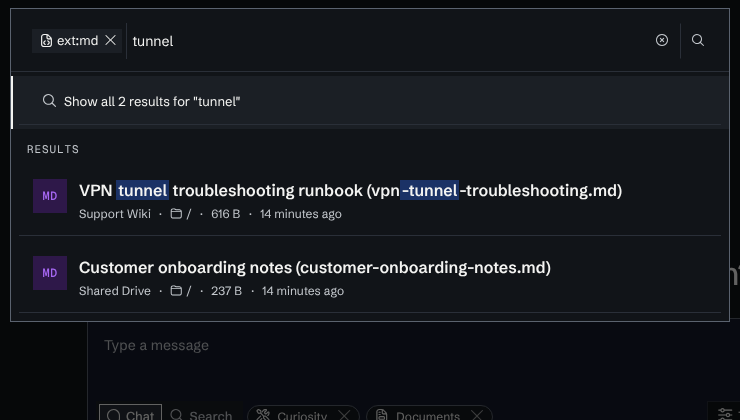
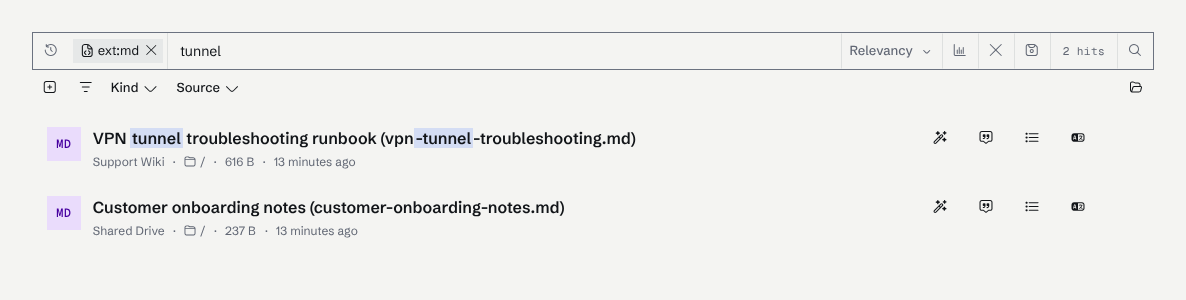
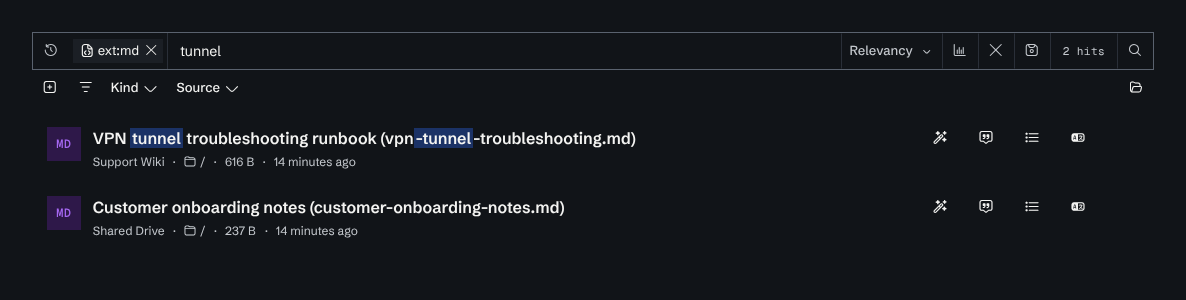
Typing ext:md and pressing Enter turns it into a chip, and the box lists the matching files as more text is typed. Pressing Enter again opens the full results with the chip still applied:

How filters relate to the query
A chip is not part of the text query. It becomes a facet on the search request, applied before ranking, the same way a value selected in the facet sidebar narrows the results:
| Filter | Facet it sets |
|---|---|
@file, @webpage |
The node-type facet (_FileEntry, _WebPage) |
filetype: |
_FileEntry.ContentType |
ext: |
_FileEntry.Extension |
src: |
Node.Source |
The rest of the text in the box is searched with the ordinary query syntax. The words filetype, kind, ext, extension, src and source followed by a colon are taken by the search box as filters, not as field:value restrictions.
Limits
- The set of filters is fixed. There is no setting that adds a filter to the main search box; a filter for a workspace's own node types or fields can only be added to a search area that an application builds.
filetype:andext:read fields of_FileEntry, so they match files only.
See also
- Text Search: query syntax, fuzzy matching and facets.
- SearchArea recipe: adding these and custom filters to an application's own search areas.
- Omni Box: the Tesserae component that renders the chips.