

Text Search
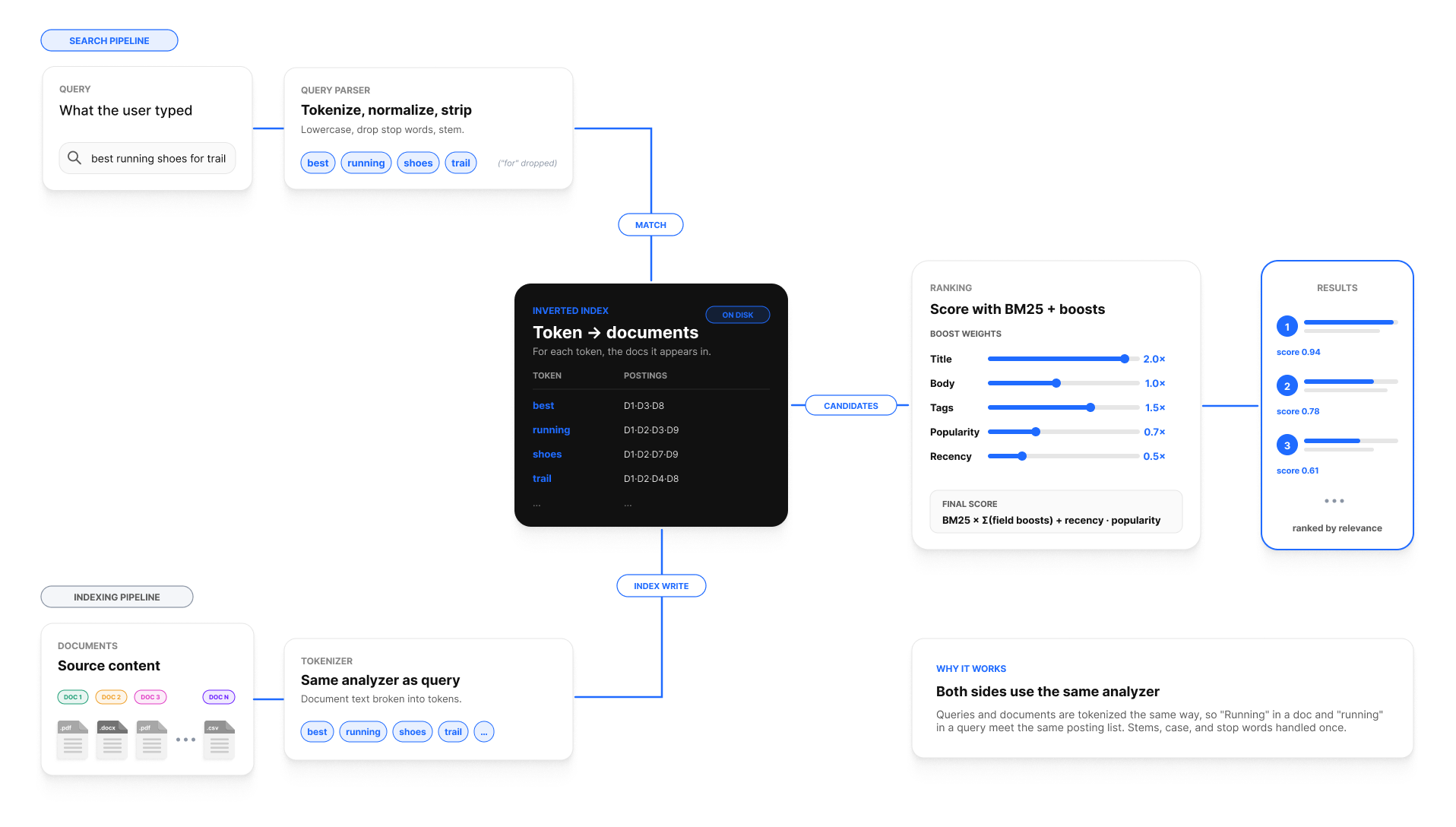
Text search retrieves results by matching tokens — words, numbers, identifiers — between the query and the indexed content. It is the right tool when users know the exact terms they're looking for (titles, IDs, names, distinctive keywords).
For meaning-based retrieval (paraphrases, "find similar"), use Vector Search. For most production deployments, use Hybrid Search which combines both.
When to use text search
Text search is the strong choice when users:
- search by identifiers (
T-9182, serial numbers, SKUs); - know exact keywords that appear in the data;
- expect predictable matching on short fields (names, titles, statuses);
- need boolean / phrase semantics ("CEO OR Founder",
"exact phrase").
It's the weak choice when users:
- describe a concept in their own words ("the slow customer issue");
- search in a language whose stemming you haven't configured;
- search across very long bodies where keyword overlap is incidental.
What to index
Indexing happens per node type, per field, configured under Settings → Search → Indexes.
Start with the fields users will actually type into the search box:
- Titles / names / subjects — high boost.
- Identifiers — IDs, codes, serial numbers. Often a dedicated exact-match analyzer.
- Short descriptions / summaries — medium boost.
- Long bodies — index if needed, but consider whether vector retrieval would serve users better.
Avoid indexing:
- Boilerplate (legal footers, signatures, generic disclaimers).
- Generated noise (raw stack traces in places where they aren't useful).
- Fields that exist purely for downstream pipelines (raw HTML before parsing, opaque blobs).
Query syntax
The search engine accepts a small, well-defined query language:
| Syntax | Meaning | Example |
|---|---|---|
term1 term2 |
All tokens must match | screen flicker |
"exact phrase" |
Phrase match | "firmware update" |
term1 OR term2 |
Either token | crash OR freeze |
-term |
Exclude | crash -known-issue |
field:value |
Restrict to a field | subject:"firmware" |
field:>=value |
Numeric / date comparison | priority:>=3, createdAt:>=2024-10-01 |
* |
Wildcard suffix | MacBoo* |
Query input is tokenized by the analyzer configured per language (en, de, fr, …). Tokenization decides:
- whether
iPhone-14is one token or two, - whether
runningstems torun, - whether case matters,
- whether accents are stripped.
See Internationalization for the per-language defaults.
Fuzzy matching (typo tolerance)
Fuzzy matching lets a query token match indexed tokens that are close to, but not identical to, what the user typed. It absorbs small typos and spelling variants: databse still matches database, Curiousity still matches Curiosity.
It is a text-search concept only. Vector Search already tolerates spelling differences through embeddings, so fuzziness applies to the Lucene-backed text index.
When fuzzy matching helps — and when it hurts
Turn it on (or leave it on) for:
- general-purpose search over prose, titles, names, and descriptions, where users misspell words;
- noisy, user-generated, or OCR'd text, where a character or two is routinely wrong.
Turn it off (fuzziness 0) for:
- identifiers — SKUs, ticket IDs, serial numbers, codes. A one-edit neighbour of
T-9182is a different ticket, not a typo, so fuzzy matching surfaces misleading hits. - short, ambiguous tokens — one wrong character in a 3-letter word is usually a different word. (Auto fuzziness already handles this; see below.)
- fields where precision matters more than recall, or where you are seeing too many loosely-related results.
Fuzzy matching also widens the result set: a higher edit distance matches more tokens, which means more candidate results and more scoring work per query. On large indexes that shows up as latency.
How it works under the hood
Fuzziness is an edit distance — the number of single-character edits (insertion, deletion, substitution, or transposition) needed to turn one token into another. The text index issues a Lucene FuzzyQuery, which matches any indexed token within that distance of the query token.
| Edit distance | Meaning | database matches |
|---|---|---|
0 |
Exact token only | database |
1 |
One edit away | databse, databases, datebase |
2 |
Two edits away | datbse, databasse |
Only 0, 1, and 2 are valid — the index cannot match beyond two edits.
The fuzzy variant is added alongside the exact term, as an optional (SHOULD) clause, never as a replacement. The exact term still scores higher because BM25 ranking favours the precise hit, so correctly-spelled queries are not pushed down by their fuzzy neighbours. See Ranking Tuning for how scores combine. Fuzziness applies to whole-token matching; it does not combine with wildcard/prefix (MacBoo*) matching, which solves a different problem (unknown suffix vs. wrong character).
Auto fuzziness (the default) picks the edit distance per token, based on token length, so short tokens stay precise while longer words get room to absorb a typo:
| Token length | Edit distance applied |
|---|---|
| 1 character | 0 — exact only |
| 2–4 characters | 1 |
| 5 or more characters | 2 |
Configure and enable
Fuzziness is resolved from three layers, in increasing order of precedence — a later layer overrides an earlier one:
Workspace default
The global setting for the search pipeline, under Settings → Search → Full-Text Search:
- unset / auto — auto fuzziness (the length-based table above). This is the default.
0— disable fuzzy matching workspace-wide; every query is exact.1or2— apply that fixed edit distance to every token, regardless of length.
Per request
A search request may carry its own Fuzziness value, which overrides the workspace default for that one query. Setting it to 0 forces an exact search for that request.
var search = SearchRequest.For(req.Query);
search.Fuzziness = 0;   // exact match for this request; null = use workspace default
Per user
Each user has a Fuzzy Search toggle under their search preferences (Enabled / Disabled), described as "Enhance your search with fuzzy matching of words to correct small typos." Disabling it forces exact matching for that user by sending a per-request fuzziness of 0. Administrators can hide this toggle so the workspace default always wins.
Precedence in one line
auto / workspace default → per-request override → per-user override. A 0 at any higher layer turns fuzzy matching off for that scope, even if a lower layer enabled it.
How to test it
- Pick a known token that is indexed — a distinctive word from a title or description, at least 5 characters long so auto fuzziness applies a distance of
2. - Search the exact term first and confirm the expected result appears. This is your baseline.
- Re-run with a deliberate typo — drop, swap, or duplicate one character (
database→databse). With fuzzy matching on, the same result should still appear, ranked at or just below the exact run. - Disable fuzziness and repeat — flip the per-user Fuzzy Search toggle to Disabled (or send
Fuzziness = 0on the request). The typo'd query should now return nothing, confirming the match came from fuzzy matching and not from stemming or another path. - Check short tokens behave — a typo in a 3-character token should not match under auto fuzziness; that is expected, not a bug.
If a typo'd query returns nothing when you expect a match, the usual cause is fuzziness forced to 0 somewhere up the precedence chain — most often the per-user toggle set to Disabled or a per-request override. If fuzzy results feel noisy, the workspace default or per-request value is likely a fixed 2; drop to auto or 1, or disable it on identifier fields.
Ranking
Text scoring is BM25-style: matches on rare tokens score higher than matches on common tokens, and matches on boosted fields (typically Subject, Title, Name) outweigh matches on body text.
Levers, in order of impact:
- Field boosts — give high-signal fields a weight of 3–10x relative to bodies.
- Filters and facets — narrow the result set before ranking. Cheaper and more accurate than scoring against the whole graph.
- Sort modes — most queries should sort by relevance; for time-sensitive domains, expose a "most recent first" toggle.
- Recency — boost recent content (within the last 30/90 days) when freshness matters for your domain.
See Ranking Tuning for the full workflow.
Filtering and facets
Most production search experiences refine results via facets — that's what turns "many results" into "the right result". Three kinds:
- Property facets — derived from indexed properties:
Status=Open,Priority=P1,Region=EMEA. - Related facets — derived from graph edges:
Customer=Acme,Product=Pro 14,Owner=Engineering. - Time facets — for event-like data: "last 7 days", "this quarter".
Related facets are the differentiator: they let you constrain search by graph relationship without a JOIN. The classic example: search for "screen issue" within tickets owned by customers in the Enterprise tier.
var search = SearchRequest.For("screen issue");
search.BeforeTypesFacet = new([] { N.Ticket.Type });

// Graph-derived target set: tickets for any Enterprise-tier customer
search.TargetUIDs = Q().StartAt(N.Customer.Type)
                       .Where(c => c.GetString("Tier") == "Enterprise")
                       .Out("HasTicket")
                       .AsUIDEnumerable()
                       .ToArray();

var query = await Graph.CreateSearchAsUserAsync(search, CurrentUser, CancellationToken);
return query.Take(20).Emit("N");
Pagination and result shape
Search requests accept Skip/Take for pagination:
var search = SearchRequest.For(req.Query);
search.Skip = req.Page * 20;
search.Take = 20;
Result objects expose:
UID— stable identifier for the node;Type— node type;- typed property accessors (
n.GetString("Subject"),n.GetDateTimeOffset("CreatedAt")); - score and highlight snippets (when requested).
Permission-aware text search
Always use the user-context variant for user-facing search:
var query = await Graph.CreateSearchAsUserAsync(search, CurrentUser, CancellationToken);
This applies the calling user's ACL filter at query time — see Permission model architecture. The system-context variant Graph.CreateSearchAsync(search) bypasses ACLs and is reserved for admin tasks.
Highlighting
The search engine returns highlight snippets for matched fields when configured. Snippets preserve the matched terms and surrounding context, which the UI renders with marks. Highlights are most useful on title/subject/body fields; turn them off for fields that don't render well as snippets (URLs, raw codes).
Debugging relevance
When a search "isn't finding what it should":
- Sign in as admin and re-run. If results appear, the issue is ReBAC, not search.
- Check the indexed fields under Settings → Search → Indexes. Has the field been added since the last rebuild?
- Check the analyzer. A query that should match an English word might fail under a German analyzer.
- Reduce to a single-term query. Multi-term ranking is harder to reason about.
- Look at the boosted fields. If body text outranks titles, raise the title boost.
- Use facets to bisect. If results appear under a
Type=Ticketfacet but not without it, ranking is being dominated by another type. - Inspect highlights. If a snippet doesn't contain the expected term, the analyzer probably tokenized it differently than you assumed.
Common pitfalls
- Over-indexing: every field costs memory and index time. Start with user-facing fields.
- Under-boosting key fields: long body fields will dominate ranking if titles aren't boosted.
- Mixing types without facets: results that include
Customer,Ticket, andDocumenttogether are usually confusing. Type-scope your queries. - Ignoring the analyzer: enabling English analysis on multilingual content silently misses 30%+ of queries.
- Boolean overuse: most users type 2–3 words. Optimize for that, not for power users with operators.
Next steps
- Add semantic retrieval: Vector Search.
- Combine both: Hybrid Search.
- Tune systematically: Ranking Tuning.
- Make facets actually useful: Search Optimization.
- Reference: Search DSL.