

Creating and managing workspaces
This page covers the console's Workspaces page and a workspace's own page. Everything here is also available through the management API.
How a workspace is built
A workspace is a record in the Orchestrator's database. Its container is derived from that record:
- Container: named
<prefix><slug>, for examplecuriosity-acme. It carries a label with a hash of everything it is created from. When the record changes (new limits, environment, image, a rotated password), the label no longer matches and the Orchestrator re-creates the container on the next start. - Data: one named volume,
<prefix><slug>-data, mounted at/DATA. It holds Studio's graph storage, web folder and logs. Re-creating or updating a container never touches it. Deleting a workspace removes it only when you ask. - Environment: the Orchestrator sets
MSK_APPNAME,MSK_DISABLE_DOCKER_UPDATE=true(the Orchestrator owns updates) and theMSK_ADMIN_*account seed. Your own variables come on top. See Environment variables. - Stopping: a stop waits up to 10 minutes (
ORC_STOP_TIMEOUT_SECONDS), because Studio saves its graph when it receives SIGTERM.
Create a workspace
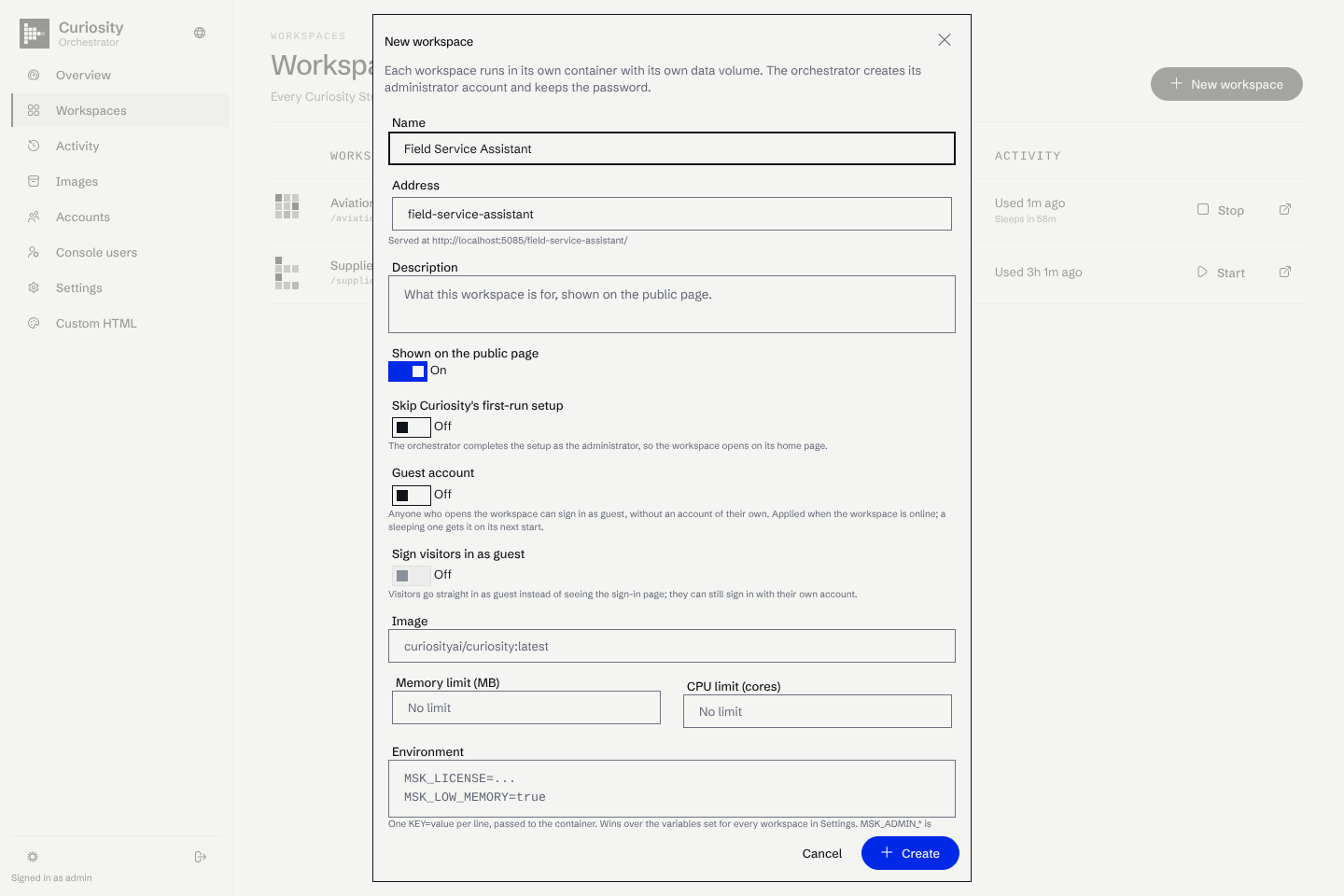
Workspaces → New workspace has these fields.
| Field | What it does |
|---|---|
| Name | The workspace's name. Studio keys the stored sign-in token by workspace name, so names must be unique per Orchestrator. |
| Address | The slug: where the workspace is served, /<slug>/ and <slug>.<host>. 1 to 40 lowercase letters, digits or dashes, starting and ending with a letter or digit. |
| Description | Shown on the public landing page. |
| Image | The Docker image. Defaults to ORC_DEFAULT_IMAGE (curiosityai/curiosity:latest). Console users who are not the global administrator cannot choose it. |
| Memory limit (MB), CPU limit (cores) | Defaults to ORC_DEFAULT_MEMORY_LIMIT and ORC_DEFAULT_CPU_LIMIT. 0 means no limit. |
| Shown on the public page | Whether the landing page lists it. |
| Skip Curiosity's first-run setup | Skips Studio's first-run wizard. The Orchestrator completes the setup itself. |
| Guest account, Sign visitors in as guest | See Accounts and users. |
| Start right away | Starts the workspace after creating it. |
| Environment | NAME=value lines passed to this workspace only. |
| Node | On a central, the node that hosts it. See Fleet. |
A new workspace that is not started at creation is started once, to set up its name, first-run setup and accounts, and then goes back to sleep. The operation log on the workspace page shows each step.
Addresses that are refused
The address admin, default, www and the Orchestrator's own top-level paths (api, assets, chunks, manage, start, health, root, ping, favicon, login, logout, static, _framework) are reserved, as are addresses starting with commit- or preview-. Studio's front-end strips those segments when it works out its API address, and www is refused because a slug is also a subdomain.
The workspace page
Each workspace has tabs for its overview, logs, settings, data, administrator account, owners and activity. On a central, the page also says which node hosts it.
| Action | Effect |
|---|---|
| Start, Restart | Starts the container, or stops and starts it. The workspace is ready when GET /api/graph/ready answers true. |
| Stop | Stops the workspace and clears any keep warm. |
| Open | Opens the workspace in a new tab. |
| Sign in as administrator | Opens the workspace already signed in as its administrator. |
| Keep warm | Keeps it running for a time, or always online. See Sleep and wake. |
| Update to the latest image | Pulls the image and re-creates the container. See Updating images. |
| Re-create the container | Builds a new container from the record. The data volume is kept. |
| Download a backup, Restore, Reset | See Backups, restore and reset. |
| Download the full log | The container's log as a text file. |
| Delete | Deletes the workspace. It asks whether to delete the data volume too. |
| Move to another node | On a central only. See Fleet. |
The Logs tab follows the container's output, with a filter and a tail size. The overview charts CPU, memory, network and block IO from the last 240 samples (ORC_STATS_INTERVAL_SECONDS, 15 seconds by default) and shows the volume's size.
Environment variables
Three layers reach a workspace's container. The more specific one wins on a conflict.
ORC_INSTANCE_ENV_<NAME>on the Orchestrator, passed to every workspace as<NAME>. For example,ORC_INSTANCE_ENV_MSK_LICENSEsetsMSK_LICENSE. This is the right place for a per-machine value.- Environment for every workspace on the console's Settings page.
- The workspace's own variables, in its form.
Saving the global variables re-creates the running workspaces they change. A stopped workspace is re-created on its next start. A save that changes nothing does nothing.
The administrator account
The Orchestrator creates an admin account in each workspace, with the address admin@<slug>.local and a random 24-character password that it keeps. It seeds the account through MSK_ADMIN_USER, MSK_ADMIN_EMAIL and MSK_ADMIN_PASSWORD, which Studio re-applies on every start. The Orchestrator signs in with it to name the workspace and to open it for you already signed in.
The Administrator tab reveals the password and rotates it. Rotating re-creates the container.
Activity
The Activity page lists what the Orchestrator did and why: starts, stops, idle shutdowns, updates, failures. A workspace's own Activity tab filters it to that workspace.